
Article: How to recover deleted files?
Introduction.
Files can be deleted by mistake, or simply as a matter of misunderstanding. You may have already encounter situations when you move a file to some external media (for example, to a diskette) and then find out that the media is damaged and you urgently need to restore the original file on the hard drive. This happens especially often with files that are 'not so important', but nevertheless you hate to lose them.
Sometimes you need to recover files that has simply disappeared. You know they should be there, but you can't find them. This may mean that the files were deleted by a virus, or that the file system was damaged. Whatever the reason, you need to stop saving any files to the drive where your files disappeared and scan the drive with a reliable recovery program.
To restore deleted files, we will use Advanced NTFS Recovery. It works equally good with all kinds of lost files (deleted, damaged, formatted etc.).
Step 1: Download and install the program.
Download Advanced NTFS Recovery to a known location. Run setup and follow on-screen instructions to install the application.
Step 2: Start the program. Select a drive to scan for lost files.
Launch Advanced NTFS Recovery. It welcomes you with a greeting from its wizard:
Click "Next".
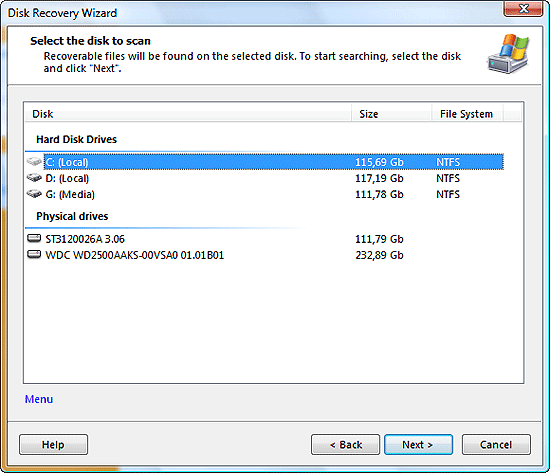
The program detects storage devices on your system and shows a list. You can select either logical or physical drives for scanning. If your files were simply deleted, it is enough to choose the corresponding logical drive. You may want to scan a physical drive if it has been formatted and you need to restore formatted files or partitions.
Once a drive is selected, click "Next" to start scanning.
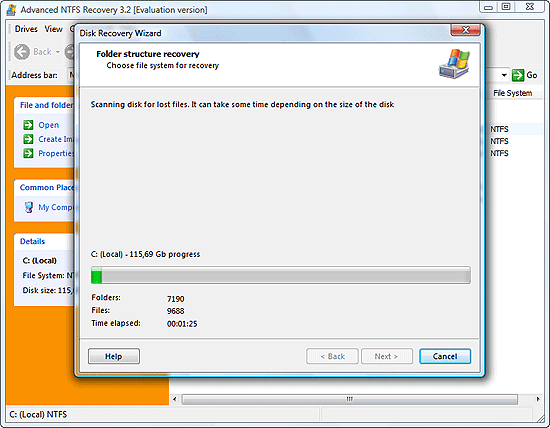
Step 3: Find and restore deleted files.
The scanning process can take some time, depending on the capacity of the disk that you scan. Finally, the process is over. Click "Finish" to exit the wizard and browse recovered files.
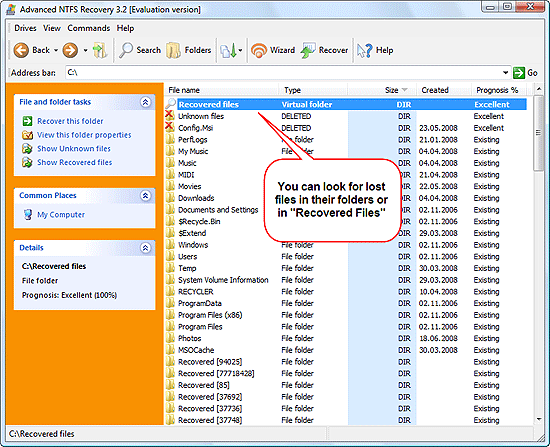
You can try looking for deleted files in their folder(s). However, it is not always possible to restore filenames, so that files deleted from the file table don't have names. For usual undelete programs this means that the game is over, files are lost and cannot be recovered. But Advanced NTFS Recovery is able to scan beyond the file table and to retrieve all recoverable files. It also detects file type.
We didn't find our photos in their directory (Photos), so let's try "Recovered files" (the very first folder in the list).
Our photo was in the JPG format, so we choose the corresponding type.
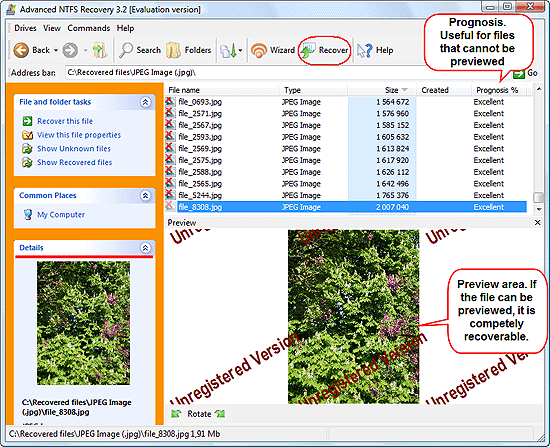
As we can see, the program has recognized lots of deleted files. Without the filename, how can we find the right one?
Well, we are lucky as we know the approximate size of the file. Our photo was in pretty good quality, which means big. We sort the list by size (by clicking the corresponding column), scroll down and try to preview files. And yes, here we are.
Advanced NTFS Recovery has a preview feature that allows previewing of certain file types. A complete preview means that the file is fully recoverable.
For other file types (that cannot be previewed) the program offers its recovery prognosis. "Excellent" usually means that there are very good chances for the file to be restored completely and without problems.
Once you have found your files, select them and click "Recover" on the toolbar. The program will ask you where to save restored files. It is recommended to use another drive, not the one where deleted files are.
The evaluation version can recover small files: up to 64 Kb (perfect for small documents, text files etc.). If your files are larger than 64 Kb, you will be prompted to register your copy of Advanced NTFS Recovery.
 Product Page
- Firewall and Intrusion Detection
- Network/Protocol Analyzer
- Network Scanner
- Privacy and Anonymity
- Whois and TraceRoute
- Network Utilities, Suits, Toolkits
- Network Monitor
- Network Traffic Accounting
- Network Inventory
- Remote Control
- File and Disk Encryption
- File and Password Recovery
- Keylogger and AntiKeylogger
- Email Tools
All Categories
Best Recent Downloads
-
PA Server Monitor Ultra
Agentless distributed monitoring of servers and devices
-
GFI WebMonitor - Standalone Proxy Version
Internet monitoring and web security for SMBs
-
GFI LANguard Network Security Scanner
Network vulnerability management solution.
-
Nsauditor Network Security Auditor
Scan and monitor network.Over 45 net tools.
-
10-Strike Network Inventory Explorer
Monitor network computer inventory
-
Network Administrator's Toolkit
Inventory user PCs and monitor servers
-
Net Monitor for Employees
See their screens and take a control.
-
SpotAuditor
Recovers MSN,IE,Outlook,ICQ,Ras,Ftp passwords
-
Alchemy Eye
Server monitoring tool
-
NetResident
Network content monitor
-
Advanced Host Monitor
Award-winning network monitoring software
-
Network Inventory Reporter
inventory software
-
SpotIE Password Recovery
SpotIE recovers Internet Explorer passwords.
-
Asset Tracker for Networks
Inventory network workstations, build reports
-
SpotMSN Password Recover
Recovers MSN messenger and Live passwords.
-
Accent OFFICE Password Recovery
How to break passwords in Office / OpenOffice
-
East-Tec Eraser 2008
Keep what you do on your computer to yourself
-
Security Task Manager
Enhanced Process Viewer that protects your PC
-
NetInfo
A full-featured network toolkit.
-
SpotFTP Password Recover
Recovers FTP passwords stored in computers.
-
Free IP Scanner
A very fast IP scanner and port scanner.